Assistive technology
Screen Reader Testing with NVDA: A Worked Example
Published by whatisADA / Grow Wild Agency · Updated
Purpose and preparation
Use NVDA on Windows to review a page’s structure, controls and error recovery. Our worked example records actual NVDA speech from the heading validator we maintain, including automatic result announcements, explicit reading commands and the route back to the input.
A practical example
In our October 19, 2026 test, NVDA read the heading-validator controls, the result heading and the malformed-input details. We corrected the outline and checked the new result. The session record below separates captured speech from browser focus and visible page state.
How to check it
- Start NVDA, load the page, and read its title and opening content. Note unexpected announcements or repeated navigation before the main content.
- Use NVDA's heading, landmark and link navigation to locate the service instructions. Compare the announced structure with the intended content hierarchy.
- Tab through controls, activate a link, and record whether the next page is identifiable. Save the exact announcement and reproduction steps for each barrier.
Completed example: NVDA error recovery in our heading validator
Tested October 19, 2026 · Grow Wild’s maintenance work on What Is ADA
We tested the heading validator we maintain with a real NVDA screen reader. The task was to find a sample with mismatched HTML tags, run the check, read the error, correct the outline and reach a new result. This extends our earlier keyboard-only test with captured screen-reader output.
What ran, and what the record means
The session used NVDA 2026.2 (executable version 2026.2.0.57664), Chromium 156.0.8078.4 and Windows Server 2022 Datacenter, build 10.0.20348, in a temporary test environment. The browser viewport was 1280 × 900. The deployed tool revision was 01beb11.
Guidepup operated the actual portable NVDA application and captured its speech messages. Playwright opened the browser and recorded page state and screenshots. This was an automated test with real assistive technology, not a simulated DOM reader, an audio recording or a usability session with a disabled participant.
We retained Guidepup’s prepared settings: automatic continuous reading on page load was off; the configured voice was English (UK), George, with rate 100 and rate boost on. Its browser setup helper uses a click and mode changes before the recorded task. After setup, NVDA commands operated the journey. Different settings, browsers and versions can produce different wording or timing.
What NVDA actually reported
Find the tool and its sample controls
Control+Home reached the start of the browse buffer. Heading navigation reported “main landmark, Heading Structure Validator, heading, level 1.” Button navigation reached all six sample buttons, ending with “Load: Mismatched HTML tags, button.” Enter loaded
<h2>Products</h3>.Read the input before submitting
Tab reached the input. NVDA reported its label, “edit, multi line,” the accepted-format instructions and the entered markup. A further Tab reported “Validate Headings, button.” This verifies more than the presence of a label in the page source.
Separate the automatic announcement from reading the result
After Enter, the captured automatic output was “Heading review results, heading, level 2.” The browser also moved focus to that heading. The counts were not included in that captured announcement. Down Arrow then read “0 headings recognized; 1 nonempty lines not recognized. 0 structural observations need review.” Two more Down Arrow commands read the line-1 error and the instructions to use one supported heading per line.
Return to the input using spoken checkpoints
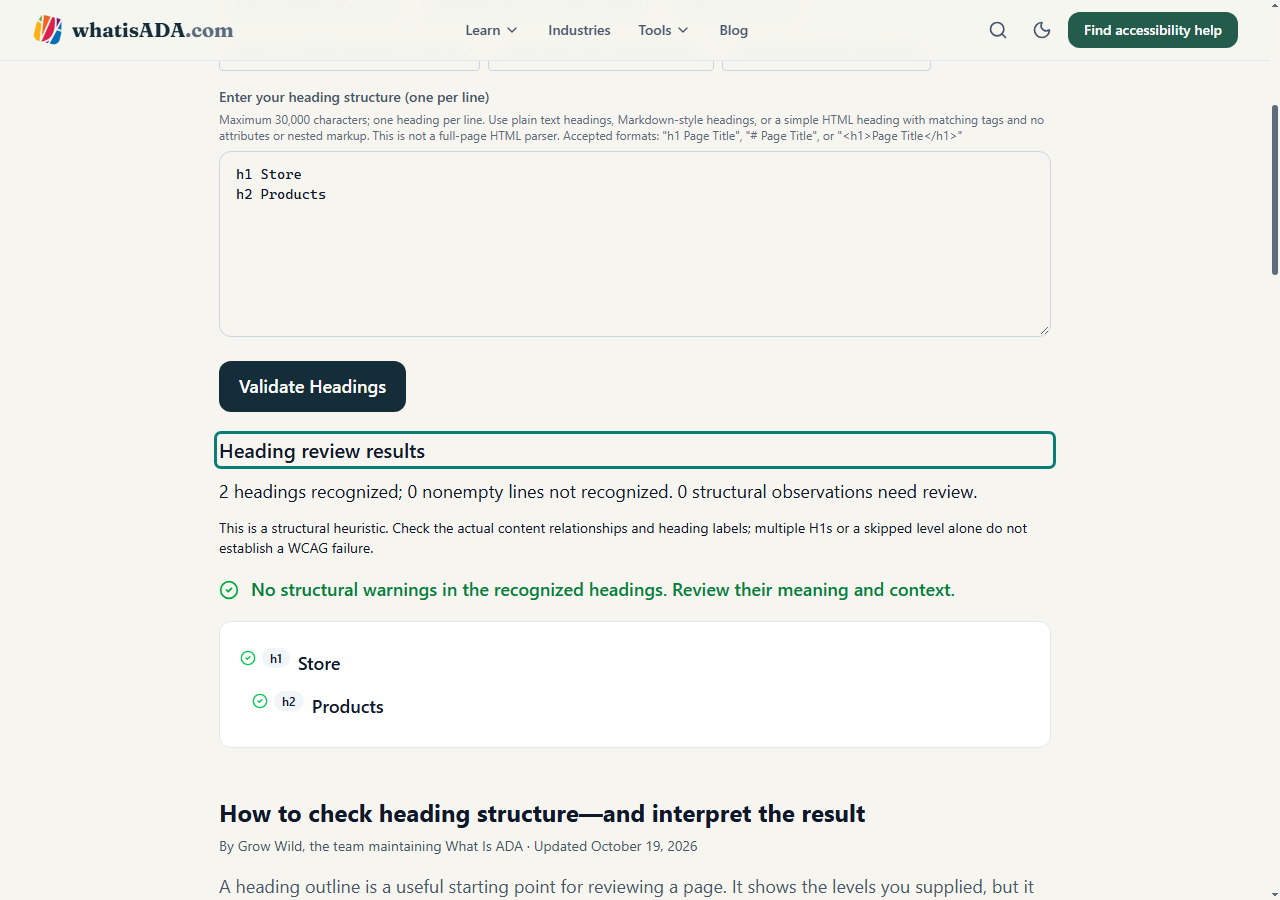
After reading the error details, three Shift+Tab presses reached the results heading, Validate Headings and then the labeled input. This differed from the two presses needed when returning directly from the focused heading in our keyboard-only session. We selected the text with Control+A and entered the replacement below, using Enter between lines.
Verify the corrected result and continue
Tab and Enter ran the corrected check. NVDA again announced the results heading. Explicit next-line reading exposed two recognized headings, zero unrecognized lines and zero structural observations. A following Tab reached the examples download link and NVDA read its name. Download activation was outside this test.
h1 Store
h2 Products
The useful lesson: record speech, cursor position and focus separately
During heading and button navigation, NVDA’s reading cursor moved while browser keyboard focus remained elsewhere. Treating document.activeElement as the screen reader’s current reading position would have misrepresented this session. Reading the result also changed the route back to the input. Confirm the announced control before typing; do not assume a fixed Tab count always reaches it.
A role="status" attribute did not establish that the result counts were automatically spoken in this session. We observed the heading announcement, then separately verified the counts and correction instructions through reading commands. The record therefore distinguishes automatic notification, explicit reading and visible page state.
Download the verified session record
Commands, captured NVDA speech and corroborating page state (JSON)
Step-by-step speech record (CSV)
These are records of our own tool with synthetic inputs. Use the blank evidence template for a different page. Keep its version, task, commands, actual speech and unresolved questions together.
Scope, WCAG context and remaining checks
WCAG 3.3.1 Error Identification addresses identifying and describing automatically detected input errors. 4.1.3 Status Messages addresses qualifying updates that can be presented without taking focus. A focus change and a live-region announcement are different mechanisms; this session does not establish a criterion-wide pass or failure.
The completed journey demonstrates these controls, this error and this correction with this NVDA configuration. It does not establish whole-site conformance, other screen-reader compatibility, mobile usability or how a participant experiences the task. VoiceOver/Safari speech remains unverified after a separate test-environment problem. Usability work with disabled participants and testing representative real tasks remain separate evidence needs.
What can be missed
A successful read-through does not test every state or establish accessibility for other screen readers. Browse mode and focus mode serve different tasks; record a mode change when it affects the result.
Record your test
Use this worksheet to record what you actually checked. Notes stay on this device when you choose Save; they are not sent to us. Avoid personal or confidential information on shared devices.
These are your observations, not automated results or a conformance certificate. A complete evaluation needs appropriate scope, supported technologies, all applicable criteria and relevant page states.
Primary sources and scope
- Primary workflow guidance
- WCAG 1.3.1: Info and Relationships
- WCAG 2.4.2: Page Titled
- Guidepup: testing with real NVDA
- WCAG 3.3.1: Error Identification
- WCAG 4.1.3: Status Messages
This is independent implementation guidance with original examples. The linked standard contains the full definitions, exceptions and conformance requirements. A criterion or checklist alone does not establish legal applicability or whole-site conformance.